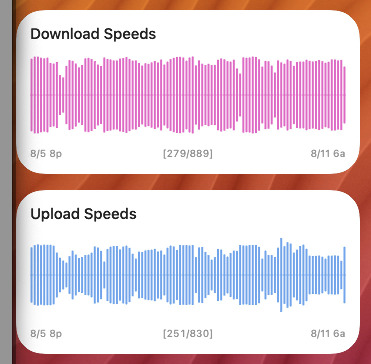
I’ve been using AI agents to scaffold little Mac automations for a while, but TerminalWidget is an especially good fit. The CLI is flag-heavy in a good way — once the model can see the real docs, it stops inventing fake options and starts writing scripts that actually update a widget.
The trick is not “ask ChatGPT to make a widget.” The trick is: point the agent at the docs, give it a concrete outcome, and have it deliver the whole package — script, CSV history, chart update, launchd job, and install steps.
Feed the agent the real docs
TerminalWidget publishes LLM-friendly Markdown at flat URLs (not nested under /integrations/):
In Cursor / Claude Code / your agent of choice, paste something like:
Read https://terminalwidget.app/cli.md and
https://terminalwidget.app/integrations.md#getting-started
before writing any terminal-widget commands.
Do not invent flags. Prefer --chart-format waveform for history charts.
Substituing your preferred chart type, of course.
That one instruction saves you from a surprising amount of creative fiction.
Pick a concrete widget first
Vague prompts produce vague scripts. I use Network Speeds as the demo because macOS already ships networkQuality, and a running history looks great as a waveform. I used to use the Ookla speedtest CLI, but networkQuality seems to be even more accurate, and faster. Note that to make use of networkQuality in scripts, you need to use the -s flag to test each in serial, as shown in the example script.
Goal for the agent:
Run networkQuality -s hourly
Append timestamp,download,upload to ~/logs/speed.csv
Keep the last ~100 rows
Push download (and upload) history into TerminalWidget as --chart-format waveform
Install a user launchd job so it just keeps running
Drop two Medium widgets on the desktop first. Set Edit Widget → Target name to download and upload (or whatever IDs you prefer). No target match = “why isn’t it updating?”
The prompt that gets the whole package
Here’s a prompt that tends to produce usable output on the first or second try:
Using https://terminalwidget.app/cli.md as the source of truth,
create a bash script at ~/scripts/speed-widget.sh that:

1. Runs `networkQuality -s` and parses Downlink/Uplink capacity as integers (Mbps).
2. Appends a CSV line to ~/logs/speed.csv as:
   ISO8601_timestamp,download_mbps,upload_mbps
3. Trims the log to the last 100 lines.
4. Supports `--background` which:
   - runs the speed test silently
   - then updates two TerminalWidget targets:
     - download: last N download values as --chart - --chart-format waveform --base-zero
     - upload: same for upload
   - titles "Download Speeds" / "Upload Speeds"
   - include --caption with --caption-left / --caption-right from first/last timestamps
5. Default N=96 for chart history.
6. Also write:
   - ~/Library/LaunchAgents/com.example.speed-widget.plist
     (StartInterval 3600, RunAtLoad true, calls the script with --background)
   - a short install snippet using launchctl bootstrap/enable (or load -w on older macOS)
7. Print exact commands to chmod +x, install the plist, and kick a first run.

Assume `terminal-widget` is at /opt/homebrew/bin/terminal-widget, and use a full path. Do not invent CLI flags.
Ask for the files on disk, not a wall of chat. Agents are much better when the deliverable is “write these paths.”
What the script should look like (core idea)
You don’t need my full production speed.sh — the bones are simple. CSV first:
--chart - means “read the series from stdin,” which is perfect for awk pipelines. --base-zero keeps the waveform grounded so a calm network doesn’t look like a heart monitor.
Upload is the same pattern with column 3 and --target upload. Use different colors if you want to, specified as hex codes (which AI can easily convert from other formats for you).
launchd is the boring part (let the agent do it)
A minimal hourly agent looks like:
<?xml version="1.0" encoding="UTF-8"?><!DOCTYPE plist PUBLIC "-//Apple//DTD PLIST 1.0//EN"
"http://www.apple.com/DTDs/PropertyList-1.0.dtd"><plistversion="1.0"><dict><key>Label</key><string>com.example.speed-widget</string><key>ProgramArguments</key><array><string>/bin/bash</string><string>/Users/YOU/scripts/speed-widget.sh</string><string>--background</string></array><key>RunAtLoad</key><true/><key>StartInterval</key><integer>3600</integer><key>StandardOutPath</key><string>/Users/YOU/logs/speed-widget.out</string><key>StandardErrorPath</key><string>/Users/YOU/logs/speed-widget.err</string></dict></plist>
Have the agent emit install commands tailored to your username and path:
chmod +x ~/scripts/speed-widget.sh
cp path/to/com.example.speed-widget.plist \
~/Library/LaunchAgents/ # if it wrote elsewhere first
launchctl bootout gui/$(id-u)/com.example.speed-widget 2>/dev/null ||true
launchctl bootstrap gui/$(id-u) ~/Library/LaunchAgents/com.example.speed-widget.plist
launchctl enable gui/$(id-u)/com.example.speed-widget
launchctl kickstart -k gui/$(id-u)/com.example.speed-widget
First run takes a bit — networkQuality is not instant. After that you should see history fill in on the waveform widgets as the CSV grows.
A few agent pitfalls worth naming
Target names are case-sensitive.Download ≠ download.
Widgets are not auto-created. The agent can’t place them; you still add them once in Edit Widgets.
Sandbox PATH. If launchd can’t find terminal-widget, point ProgramArguments at the full binary under /Applications/TerminalWidget.app/Contents/MacOS/TerminalWidget or a symlink in a known path.
Don’t skip the docs URL. Without cli.md, models invent charming nonsense like --sparkline-history and --widget-theme neon.
Why this pattern scales
Once you’ve done Network Speeds, the same prompt shape works for almost anything:
“Read cli.md, write a script that logs X to CSV, charts the last N points as waveform/sparkline, and installs launchd.”
That’s the real product: TerminalWidget as a tiny display surface, plus an agent that can own the plumbing. You keep the interesting part (what to measure), and let the model grind out the plist and the awk.
If you want more examples and community scripts, the Recipes section on the site is a good next stop — and if you’re building prompts for agents, start every session with cli.md open.
If this sounds appealing, and maybe you initially skipped TerminalWidget
because creating scripts seemed too complex, this route might open up
some possibilities for some great widgets. Check out TerminalWidget at
terminalwidget.app.