In WordPress admin, go to Plugins > Add New, search for BT Keyboard Shortcuts, and install from the Plugin Directory listing: BT Keyboard Shortcuts on WordPress.org.
Upload the bt-keyboard-shortcuts folder to /wp-content/plugins/.
Activate the plugin via Plugins in WordPress.
Go to Settings (under the plugin on the Plugins page) to configure display options.
Plugins page: BT Keyboard Shortcuts with Settings link
Inserting shortcuts in the editor
In the block or classic editor, use the formatting dropdown and choose Insert keyboard shortcut to open the shortcut dialog.
Editor dropdown with Insert keyboard shortcut option
In the Keyboard shortcut dialog, check modifier keys (Win/Alt/Shift/Ctrl/Fn), enter the main key, and use the generated shortcode. Click Insert to add it to the content.
Keyboard shortcut dialog with modifiers and generated shortcode
Settings
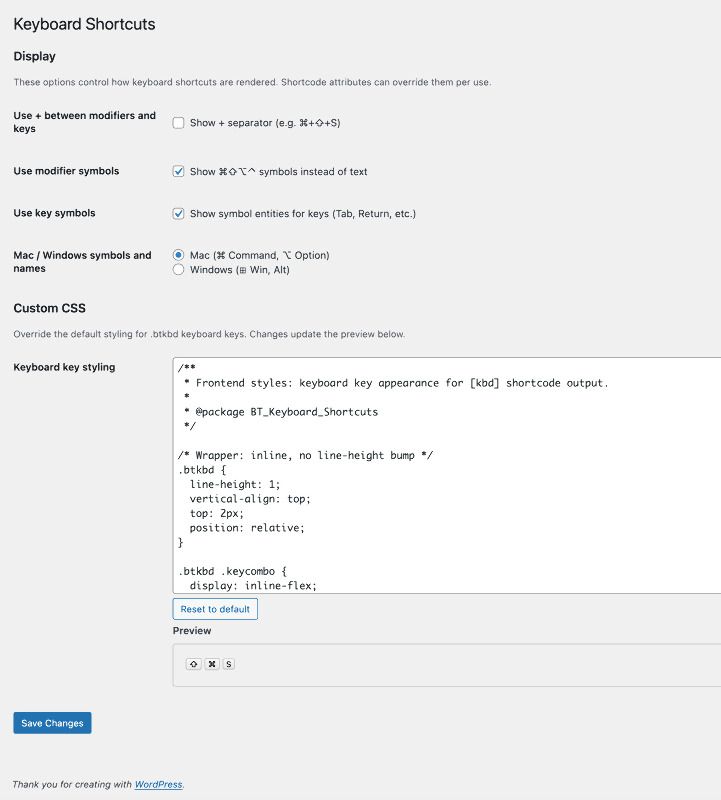
Under Settings → Keyboard Shortcuts (or via the plugin’s Settings link), you can:
Display: Show + separator (e.g. ⌘+⌥+S), use modifier symbols (⌘⇧⌥⌃) vs text, use symbol entities for keys (Tab, Return, etc.), choose Mac or Windows symbols and names, and pick a built-in style preset (Default, Light, Dark, Modern).
Styling: Use WordPress core Additional CSS (or block-theme Site Editor equivalent) to style .btkbd keyboard keys.
Keyboard Shortcuts settings: Display options
Shortcode syntax
Syntax
Example
Output
Modifiers + key
[btkbd cmd shift p]
⌘⇧P (symbols, combined)
Shortcut symbols
[btkbd $@p]
⌘⇧P
Hyphenated text
[btkbd Command-Shift-P]
⌘⇧P
Arrow keys
[btkbd right]
→ Right Arrow
Display format (symbols/text and plus separators) is controlled by plugin settings.
You can also use symbol shorthand in the shortcode: $ (Shift), @ (Command/Win), ~ (Option), ^ (CTRL). For example, [btkbd @$p] renders as ⇧⌘P.
Modifier keys are automatically rearranged to match the order recommended by Apple in their Human Interface Guidelines (e.g. ⌃ ⌥ ⇧ ⌘ before the key), regardless of the order you type them.
Readme.txt example for symbol shorthand now shows correct modifier order (P for [btkbd @$p])
1.0.3
2026-03-24 09:48
1.0.2
2026-03-23 08:41
1.0.1
2026-03-23 06:52
CHANGED
Replace the generic [kbd] shortcode with prefixed [btkbd] only.
Enqueue settings-page preview CSS and JS with WordPress wp_register/wp_enqueue/wp_add_inline APIs instead of printing raw inline tags.
Removed the plugin Custom CSS textarea and live preview from Keyboard Shortcuts settings.
The plugin now only uses built-in display options in settings and no longer stores arbitrary CSS from users.
Load plugin translations from languages/ via load_plugin_textdomain so Settings and admin UI follow the site language in BT Keyboard Shortcuts and BT Downloads
Add language files for BT Keyboard Shortcuts: .pot template plus en_US, de_DE, es_ES, fr_FR, it_IT (.po and compiled .mo) for settings page and Insert keyboard shortcut dialog
Add language files for BT Downloads: .pot template plus en_US, de_DE, es_ES, fr_FR, it_IT (.po and compiled .mo) for Downloads CPT, edit screen, card template page, and Insert download UI
PHP unit tests for [kbd]/[btkbd] shortcode (registration, modifier symbols, text/plus options, Windows style, key names, multiple combos, mod_text, empty/symbol shorthand).
Vitest-based JS test setup with placeholder test and jsdom environment.
Composer dev deps (PHPUnit, WP PHPUnit, yoast/phpunit-polyfills, PHPCS, WPCS) and scripts: test:php, lint:phpcs, test:all.
Npm scripts test:js, test:js:watch, test:all; devDependencies jsdom and vitest.
Bin/install-wp-tests.sh for WordPress PHPUnit test environment (DB, WP core, test lib).
PHPUnit config (phpunit.xml.dist), bootstrap (tests/bootstrap.php), optional wp-tests-env.php for WP_CORE_DIR/WP_TESTS_DIR.
Block editor format/toolbar and block JS strings (e.g. “Insert keyboard shortcut”, “Insert download”, “Select a download…”) now use wp_set_script_translations so they are translated when the site language is not English
Update the shortcode picker UI and generated snippets to use [btkbd] consistently in Classic and Block editor flows.
Added an in-admin notice that directs styling to WordPress core Additional CSS targeting .btkbd classes.
Encode default CSS for admin-side JavaScript with wp_json_encode to prevent unsafe script embedding sequences.
Escape saved custom CSS at output before passing it to wp_add_inline_style for frontend rendering.
Replace the generic [kbd] shortcode with prefixed [btkbd] only.
Enqueue settings-page preview CSS and JS with WordPress wp_register/wp_enqueue/wp_add_inline APIs instead of printing raw inline tags.
Load plugin translations from languages/ via load_plugin_textdomain so Settings and admin UI follow the site language in BT Keyboard Shortcuts and BT Downloads
Add language files for BT Keyboard Shortcuts: .pot template plus en_US, de_DE, es_ES, fr_FR, it_IT (.po and compiled .mo) for settings page and Insert keyboard shortcut dialog
Add language files for BT Downloads: .pot template plus en_US, de_DE, es_ES, fr_FR, it_IT (.po and compiled .mo) for Downloads CPT, edit screen, card template page, and Insert download UI
PHP unit tests for [kbd]/[btkbd] shortcode (registration, modifier symbols, text/plus options, Windows style, key names, multiple combos, mod_text, empty/symbol shorthand).
Vitest-based JS test setup with placeholder test and jsdom environment.
Composer dev deps (PHPUnit, WP PHPUnit, yoast/phpunit-polyfills, PHPCS, WPCS) and scripts: test:php, lint:phpcs, test:all.
Npm scripts test:js, test:js:watch, test:all; devDependencies jsdom and vitest.
Bin/install-wp-tests.sh for WordPress PHPUnit test environment (DB, WP core, test lib).
PHPUnit config (phpunit.xml.dist), bootstrap (tests/bootstrap.php), optional wp-tests-env.php for WP_CORE_DIR/WP_TESTS_DIR.
Block editor format/toolbar and block JS strings (e.g. “Insert keyboard shortcut”, “Insert download”, “Select a download…”) now use wp_set_script_translations so they are translated when the site language is not English
Update the shortcode picker UI and generated snippets to use [btkbd] consistently in Classic and Block editor flows.
Encode default CSS for admin-side JavaScript with wp_json_encode to prevent unsafe script embedding sequences.
Escape saved custom CSS at output before passing it to wp_add_inline_style for frontend rendering.
Remove plugin-managed arbitrary Custom CSS textarea and inline CSS injection; direct users to WordPress core Additional CSS for styling .btkbd.
New: [kbd] shortcode for rendering Apple-style keyboard shortcuts (⌘, ⇧, ⌥, ⌃) or text labels (Command, Shift, Option, Control).
New: Editor integration with an “Insert keyboard shortcut” dialog in the classic and block editors.
New: Settings page to configure + separators, symbol vs text output, key symbols, and Mac vs Windows naming.
New: Support for modifier aliases (cmd, ctrl, opt, shift, fn, hyper) and symbol shorthand ($ shift, @ command/Win, ~ option, ^ control).
New: Automatic normalization of modifier order to match Apple’s Human Interface Guidelines.
Removed: Plugin-managed Custom CSS textarea/live preview to comply with WordPress.org policy; use core Additional CSS instead.
1.0.0 — Initial release
New: [kbd] shortcode for rendering Apple-style keyboard shortcuts (⌘, ⇧, ⌥, ⌃) or text labels (Command, Shift, Option, Control).
New: Editor integration with an “Insert keyboard shortcut” dialog in the classic and block editors.
New: Settings page to configure + separators, symbol vs text output, key symbols, and Mac vs Windows naming.
New: Support for modifier aliases (cmd, ctrl, opt, shift, fn, hyper) and symbol shorthand ($ shift, @ command/Win, ~ option, ^ control).
New: Automatic normalization of modifier order to match Apple’s Human Interface Guidelines.
Removed: Plugin-managed Custom CSS textarea/live preview to comply with WordPress.org policy; use core Additional CSS instead.