I think a lot of people using Apex are going to want syntax
highlighting of code blocks. Including a script like
Highlight.js in your HTML output is fine, but I wanted
Apex to be able to directly output HTML with the necessary
spans and tables for highlighting. So, introducing the
--code-highlight flag.
How It Works
Rather than bundling a syntax highlighting engine (which
would bloat the binary and require constant updates for new
languages), I decided to leverage external tools that you
probably already have installed.
The new --code-highlight flag accepts either pygments or
skylighting as arguments:
# Using Pygments (Python-based)
apex --code-highlight pygments input.md

# Using Skylighting (Haskell-based, used by Pandoc)
apex --code-highlight skylighting input.md

# Short forms work too
apex --code-highlight p input.md   # pygments
apex --code-highlight s input.md   # skylighting
When you specify a highlighter, Apex processes your Markdown
normally, then makes a second pass over the HTML output. It
finds all <pre><code> blocks, extracts the raw code
content, pipes it through the external tool, and replaces
the original block with the colorized HTML output.
Language Detection
Apex handles language specification in the standard way
you’d expect. Just add the language identifier after the
opening fence:
```python

def hello():
    print("Hello, world!")

```
The language is extracted from either the
class="language-XXX" attribute on the code tag or the
lang="XXX" attribute on the pre tag (depending on how
cmark-gfm formatted it). This language is then passed to the
external highlighter.
If you don’t specify a language, both Pygments and
Skylighting will attempt auto-detection. Pygments is
particularly good at this thanks to its -g (guess) flag.
Skylighting will try its best but may fall back to plain
text for ambiguous code.
Line Numbers
Sometimes you want line numbers in your code blocks,
especially for tutorials or when referencing specific lines.
The new --code-line-numbers flag has you covered:
apex --code-highlight pygments --code-line-numbers input.md
This passes the appropriate options to the highlighter
(Pygments gets linenos=1, Skylighting gets the -n flag).
The result is nicely numbered code that’s easy to reference.
Automatic Styling in Standalone Mode
When you use --code-highlight with --standalone and
don’t specify a --css FILE option, Apex automatically
embeds GitHub-style syntax highlighting CSS in the document
head. This covers all the common class names used by both
Pygments and Skylighting, so your highlighted code looks
great out of the box.
apex --standalone --code-highlight pygments input.md > output.html
The embedded CSS uses a clean, GitHub-inspired color scheme
that works well with light backgrounds. Keywords are red,
strings are blue, comments are gray, and so on. If you want
different colors, you can always override with your own
stylesheet using the --css flag.
Multiple Stylesheets
Speaking of stylesheets, another improvement today is that
--css now accepts multiple files. You can either use the
flag multiple times or pass a comma-separated list:
# Multiple flags
apex --standalone --css base.css --css syntax.css input.md

# Comma-separated
apex --standalone --css base.css,syntax.css,custom.css input.md
All specified stylesheets are linked in the document head in
the order provided. If you use --embed-css, all of them
get embedded as inline <style> blocks.
Requirements
You’ll need one of the external tools installed and
available in your PATH:
-
Pygments: Install with pip install Pygments. The
pygmentize binary needs to be accessible.
-
Skylighting: Install with cabal install skylighting
or get it with Homebrew (brew install skylighting). The
skylighting binary needs to be accessible.
If the specified tool isn’t found, Apex will print a warning
and leave your code blocks unstyled (but otherwise
functional).
Other Updates
A few other things landed alongside the syntax highlighting
feature:
-
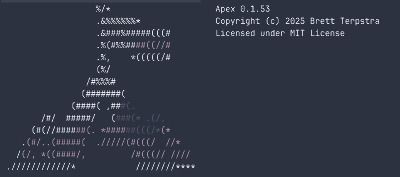
ANSI art logo in --version output, because why not?
-
Test runner badge mode (--badge) that outputs just
the pass/fail count for CI badge generation
-
Improved test output in errors-only mode now only
shows suite titles for suites with failures
-
Test infrastructure refactoring with new suite
tracking helpers for cleaner, more maintainable tests
I think the syntax highlighting will be a very useful
feature, at least for people publishing code. Integrating
with external tools means Apex handles the Markdown parsing
and document structure, while battle-tested highlighters
handle the colorization. Best of both worlds.