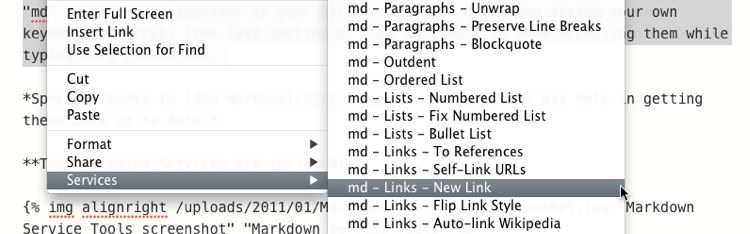
The Markdown Service Tools are a collection of OS X Services designed to make writing Markdown text that much easier. Services (also known as Quick Actions) work in any Cocoa-based application (which is most of the apps on your Mac). The Services are prefixed with “md” to keep them grouped in the Services menu that shows up when you right click in a text field or editor. You can assign your own keyboard shortcuts (see the last section of this document) to make accessing them more convenient.
Special thanks to Joe Workman for his help in getting these back up to date.
Note: some Services are only available when text is selected, and some only when no text is selected but a text field is focused.
Descriptions
The suggested key bindings in each description are just what work for me, personally; there’s no consequence for using something completely different. Just be aware that an application’s default keyboard commands will override any in the Services menu, so a command’s shortcut may become unavailable if it’s already in use by the current application.
Conversion/Rendering
Convert - Clean Up Smart Punctuation
This service will take selected text and straighten any smart (curly) quotes, replace guillemets with straight double quotes, convert em and en-dashes to --- and -- respectively, and convert ellipsis (…) characters to three periods. It will also fix non-breaking spaces that can otherwise break markdown rendering.
This Service “Markdownifies” HTML source, creating readable Markdown from it. It does not work directly on Rich Text, but if you use it on the source of a web page it will do its best to recreate the document in clean Markdown.
Processes the selected text through Markdown and SmartyPants to generate clean, typographically correct HTML. The selected text is replaced with the final HTML, but if you want both you can select it again, copy it (Command-C) and then Undo (Command-Z) to get the original text back. Markdown and SmartyPants are bundled in this Service, so no external installation is required.
This Service does an in-place conversion to styled text in any field that handles Rich Text. It’s ideal for writing an email in Markdown and converting it directly in the field before sending.
See this post for more information and requirements. Full credit to Tobias O’Leary for figuring out this magic.
Markdownify the contents of a URL in the clipboard using Marky the Markdownifier. Two versions included, one (Readability) attempts to remove extra cruft like menus and ads from the page, the other returns the Markdown conversion of the full source.
Footnotes
Footnotes - Convert Inline Format
Allows you to write footnotes inline using (*This is a footnote*) syntax and converts them to standard MultiMarkdown footnotes when run on the full text of the document. Works with multi-paragraph footnotes, keeps markers unique and recognizes existing footnote ids.
You can also use (*[marker] This is a footnote*) to define a custom name for the footnote.
When working on short documents — such as blog posts — that will be combined with other documents on a page, footnotes can end up with conflicting names or ids. This service, when run on the full text of a single document, will update all existing footnote pairs with a unique, time-based string to avoid any conflicts with other documents.
These Services will collect all of the tabs in the foreground Safari or Chrome window (respectively), and generate a reference list in the same fashion as Link List From Clipboard. These Services are only available when no text is selected.
Because Firefox (still) doesn’t have decent AppleScript support, the only way to get the necessary info from it is by sending keystrokes to it using System Events. On macOS 10.15 (and probably future versions) you need to authorize the Service and its components to send the keystrokes to Firefox:
Open System Preferences->Security & Privacy and go to the Privacy tab
On the left, select Accessibility
Click the lock in the lower left corner and provide your password to unlock it
Click the plus (+) symbol under the application list to add a new app
In the dialog that comes up, hit ⌘⇧G (Command-Shift-G), type /usr/bin/osascript in the field, and click “Go” to focus that file in the dialog
Click “Open” with “osascript” highlighted
Repeat steps 4-6 with the path /System/Library/CoreServices/System Events (instead of the osacript path)
Even with all of these steps the Service may still fail to operate intermittently. I believe this is due to a bug in macOS’ security features that will hopefully be fixed soon.
Copy text containing links to the clipboard (in any format, even embedded within other text) and this Service will find all of the links and generate a “reference-style” list of the urls, with titles you can then refer to in your document using [link text][title] syntax. It creates short titles based on the domain of the url, and adds incrementing numbers to duplicate titles to differentiate. This Service is only available when no text is selected.
Suggested key bindings: Control-Option-V, or run it from the Services menu
This Service uses formd to guess what the primary format of links (inline or reference) in the document currently is and reverse it. If your document is mostly inline links, this will turn them into numbered reference links, and vice versa.
Caveats: this Service does not function well with footnotes, and when converting from reference to inline links, it won’t pick up reference links that are indented with any number of spaces.
This will surround the selected text with inline link syntax, and if there’s a single url in the clipboard, will link it automatically. Otherwise, it will create a shell ([link text]()) with an empty parenthesis pair for you to paste a url into.
This will search your selection for urls that aren’t currently part of an HTML or Markdown link and surround them with angle brackets (<>). This makes the URL itself a hyperlink when converting to HTML or other formats.
Select the entire text of a Markdown document with inline links (or a mix of inline and reference links) and run this service to have your links replaced with the reference title format ([link text][title]) and the references placed at the end of the document. Existing references will be preserved, and titles for new references will be automatically generated based on the domain name.
These two commands create and clean up bulleted and ordered lists. They will remove any current list characters at the beginning of each line, compress blank lines in the selection, fix minor indentation mistakes while maintaining the original structure of the list, and properly increment the leading characters of ordered lists. Just select multiple lines and run one of the Services.
Suggested key bindings: Command-Shift-1 (ordered list) and Command-Shift-8 (unordered list)
This service will look for tab indents at the beginning of each line and assume they define the depth of a quote. Tabs at the beginning of each line will be replaced with “>” characters.
In Markdown, text without blank lines between it is concatenated into one continuous paragraph, removing line breaks. This is prevented by two spaces at the end of each line, and this Service just adds the spaces to the end of each selected line of text.
Removes single line breaks within the selection to remove the effects of “hard wrapping.” It doesn’t change the way the final document renders, but it makes the original Markdown document more readable on variable-width screens.
Indents the selection by 5 spaces, creating a code (or poetry) block that preserves line breaks and indentations. This format is recognized by all Markdown processors.
Surrounds the selection with a backtick “fence” as is common on GitHub and other modern Markdown interpreters, creating a verbatim (code) block that preserves line breaks and indentations. A dialog is presented for adding an optional language specifier to the fenced code.
These Services shift the beginning of all selected lines to the left or right by 4 spaces. Useful for manipulating sections of lists to create nested portions.
Suggested key bindings: Command-Shift-] (indent) and Command-Shift-[ (outdent)
These services wrap the selected text in angle brackets (<>), parenthesis (()), square brackets ([]), or backticks (\``). To be useful, they need intuitive shortcuts assigned for quick triggering. You may also consider using keybindings for this.
You can double-click on the Services to install them individually, but to add multiple (or all) of them, it’s easiest to just place them in ~/Library/Services. Simply drag the Services you want to use into ~/Library/Services (where ~ represents your user’s home folder). If you can’t find your Library folder in Finder, type Shift-Command-G and enter “~/Library/Services” to jump directly to the folder. You will have to enable the Services manually in the Keyboard Shortcuts preference pane of System Preferences. Locate them in the list and check the box to the left. You may have to restart running applications to get them to show up. They will become available in the Application Menu->Services menu, as well as from the right/Control-click contextual menu, under the Services submenu (Snow Leopard).
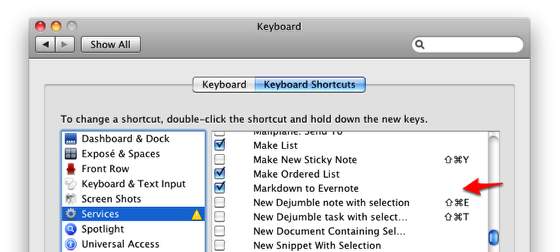
To add keyboard shortcuts to your Services, open System Preferences and choose the Keyboard Shortcuts tab at the top. Sometimes there’s a delay when loading this tab as OS X indexes all of the available applications and services. Click on the Services item in the left side of the panel, and then locate your new Service on the right. Note that you can use the checkboxes you see there to enable and disable Services without having to remove them from the Services folder.
Double click in the blank, white area to the right of your Service, as shown with the arrow in the image. When the blank area turns into a text field, press the key combination you want to use to activate the Service. Use a combination of modifier keys (Command, Shift, Control, Option) and a letter or number. If the combination is available (not used by another Service or existing system shortcut), the input field will disappear and be replaced by your new shortcut. If it doesn’t do anything, you’ll need to try a different combination of keys.
If you see a yellow “warning” triangle next to your Service, it means that there is another Service or Application Shortcut using that key combination, but it let you add it anyway. This can cause odd results, but mostly just results in neither shortcut doing anything if both associated actions are available at any given time. Sometimes, if one action is only available in one place, and the other in another place, it can be useful to have the same shortcut on related actions. If you’re not sure what’s conflicting, it’s safest just to change your shortcut and avoid the warning.
End note
The original Markdown Service Tools were created in Perl, Bash and Ruby and made into Services using ThisService. I found the Services created by Automator in Snow Leopard to be a bit slow, but have switched to using Automator for newer Services created in Lion and later. All Services sometimes lag on the first run, but are quite fast for me after first use.
For more Markdown goodness, check out nvALT and, if you’re a TextMate user, have a look at the Blogsmith Bundle (docs). There are a lot of timesaving tricks in there!
The Markdown Service Tools are a collection of macOS Services designed to make creating Markdown-formatted text that much easier. Services work in almos any macOS application.
New: “Code - Make Fenced Code Block”. Accepts a language via dialog, can be left blank.
New: “Convert - Clipboard URL to Markdown”. Markdownify the contents of a URL in the clipboard using Marky the Markdownifier
Improved: Combined “Numbered List” and “Fix Numbered List” into one service, good for both converting to a numbered list and cleaning up numbering on existing numbered list
Improved: “Links - New Link” defaults to https when generating links from incomplete urls
Improved: Chrome, Safari, Firefox, Edge, and Brave Tabs clean all Google Analytics and ref= tags from URLs
Improved: “Convert - Clean up Smart Punctuation” handles en (–) and em (—) dashes, and converts guillemets («») to straight double quotes
Improved: “MultiMarkdown to RTF”, updated RTF style to use San Francisco, system font stack
Improved: All MMD conversion services now use the binary version of MultiMarkdown (v6). If it’s not installed, it will link you to the download page.
Improved: “Indentation - Indent” uses tab instead of 4 spaces
Updated 10/7/17
Added non-breaking space conversion to “Clean Up Smart Quotes” service, and renamed to “Clean Up Smart Punctuation”
Updated 4/3/17
Added “Clean Up Smart Quotes” service
Updated 7/27/16
Added CSV -> MMD converter
Updated 5/29/15
Improved “Unwrap paragraphs” service
Updated 1/9/14
UTF-8 character compatibility
Updated 3/10/13
Inline footnotes now accept an optional marker name
New Service: Compress Empty Lines
Updated 3/09/13
New Service: Convert Inline Footnotes
New Service: Unique Footnote IDs
Updated 3/08/13:
New service: Markdown to RTF (in-place conversion)