For a quick “how-to” on using the Antique (or any) Safari Reader hack, see the related article in the HowTo section.
This will be the last release of Antique, I think, barring a few minor fixes (follow @ttscoff for updates on this and other projects). You can download it here. The code is completely open source, if anyone wants to continue the project feel free (credit would be swell, where it’s due). I’ll be putting my free time into Instapaper Beyond and other more “legitimate” projects now (although I really would like to do a nice, high-contrast, Helvetica version…). In deference to Faruk Ateş, I’d like to clearly state that this is a hack, and you run a risk (albeit very minimal) of breaking your Safari install if you don’t know what you’re doing. I also won’t be posting further simplified instructions for installation, but they’re not hard to find. For advanced users, you simply need to know that you’re replacing Reader.html in Contents/Resources.

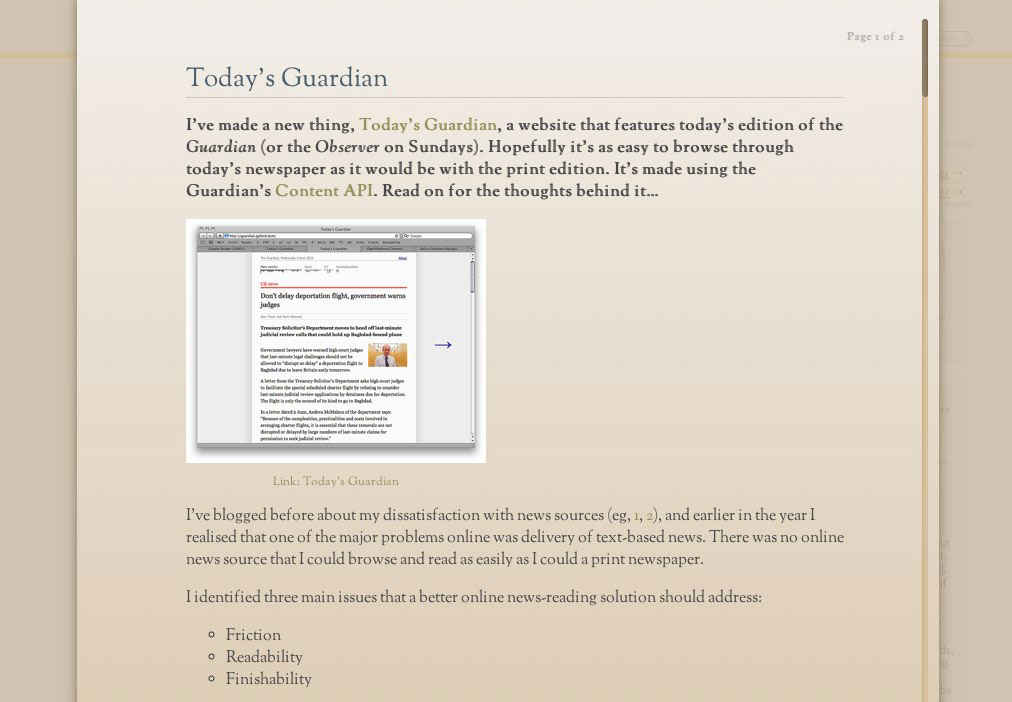
The coolest changes, in my opinion, are an amped-up Widon’t for headlines, and improved image linking. On the Widon’t end, if a title exceeds the width of the headline area, it’s actually split in the middle to provide more equal-length lines. It’s neat-o. And for the images: I had it only lightboxing images which were too large for the style and which weren’t already linked somewhere else, resulting in the user never knowing what would happen when they clicked an image. Now, if an image is linked to an external site, that link is extracted and placed on a line below the image. If an alt or title attribute are present in the image or the link, they’re preferred over the source attribute for naming the link, which should provide a decent idea of where you’re going, in most cases. Images which are linked, then, are always linked to the Colorbox effect, and will never take you out of the Reader page. Ah, consistency.
Here’s what else is new in this version.
- I swapped out the scrollbar images, shifted the colors a little, and included them in the HTML file.
- Some style changes, including a darker background and slightly heavier gradient
- Massively fixed up the ampersand code. Also shifted ampersands 1 pixel left for better kerning within non-italicized text.
- Improved smashing of empty paragraphs in bad markup to avoid huge spaces between paragraphs.
- Fixed a CSS mistake I had introduced which caused the background and drop shadow to be visible before the content slid up from the bottom.
- Set up an onscroll check for new elements. Every time the page is scrolled, Antique checks for new elements (i.e. additional pages that were inserted after initial load) and applies the default functions to them.
- did I mention 12px Droid Sans Mono for code blocks? 12px seems reasonable, and doesn’t change when zooming/shrinking the rest of the text.
Are there too many buttons in the HUD for your taste? They’re there as an example, but you can remove them easily by commenting out the “button” lines at the bottom of the Reader.html file. The HUD will adjust size and position automatically based on the number of buttons you have in there, so just remove the ones that aren’t of use to you.
If you’re playing with Reader styles, here’s a tip: you can set up a “sandbox” page to speed up development (at least with css). Once Reader has loaded a page that has elements you want to style, right click and choose “Inspect Element” (obviously, you have to have the developer menu enabled in preferences). Then, right click on the doctype declaration in the element inspector and choose “Copy as HTML.” That will give you the full HTML of the rendered document, which you can save to a new HTML file. Extract the inline stylesheets and link them into external stylesheets, and you can edit in CSSEdit or Firebug. It’s handy, given that, in order to change the live styles, you have to restart Safari every time you edit Reader.html.
I had started working on smart quotes and other javascript-based typography changes, but decided it wasn’t worth the time to try to come up with regular expressions that covered every possible circumstance. If anyone wants to pick up where I left off, I’d love to see what you come up with.
For a quick “how-to” on using the Antique (or any) Safari Reader hack, see the related article in the HowTo section.