Saving Safari browsing sessions to Evernote
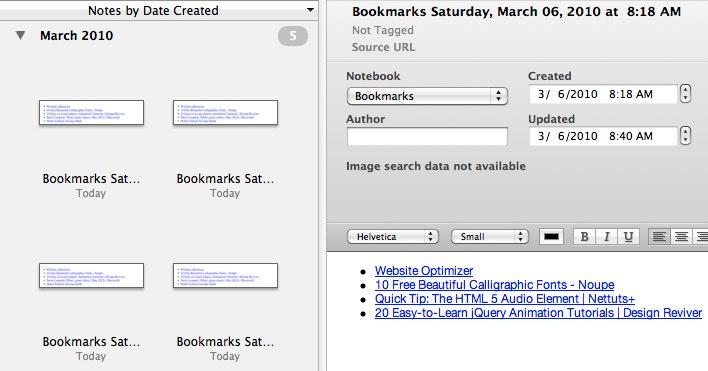 I primarily use Safari for web browsing, mostly because it’s smoother and faster than Firefox, and the Web Inspector is just as useful as Firebug. As time passes, I end up with a lot of web pages open, and I like to clear out my browser tabs on a regular basis. Safari doesn’t really have a long-term session-saving option, so I save lists of open tabs to various applications. I used to use SafariStand to do this, but it got too buggy and slow for me. I use VoodooPad for it, but I like the sorting and searching option in Evernote, both on my desktop, and synced online and to my iPhone.
As much as I love Evernote, its editor is, well, a hassle. Importing text clippings can strip line breaks and leave you with quite a mess, and cleaning it up is less than pleasant. I’ve found that using AppleScript, HTML and Evernote together allows me to create pretty well-formatted notes from web and text clippings, aside from using Evernote’s PDF features. In most caseslike website clippingsI don’t need or want a full PDF, replete with ads and comments (Clippable was designed with that in mind). The trick when creating a note in Evernote via AppleScript is to use a little HTML to get the basic formatting. Evernote’s AppleScript library provides a command tailored to this purpose.
To demonstrate, I’ll show you how to save your browsing session in Safari as a nicely formatted list in Evernote. For this I set up a new Notebook called “Bookmarks,” and am keeping the markup very simple. Evernote strips most styling from imported HTML, but accepts structural items like headlines, lists, tables, etc., applying its own default formatting to the elements.
To begin, open AppleScript Editor (or Script Editor in Leopard) and create a new document. Save it as “EverSurfSaver.scpt” (or your own, better name) in ~/Library/Scripts/Applications/Safari, creating the folders if you need to. This makes the script show up at the top of the list when you’re in Safari, and not clutter your script menu in other applications. Speaking of the Script Menu, if yours isn’t showing up in your menubar, and you want it to, look in the General tab of AppleScript Editor (Snow Leopard) or open the AppleScript Utility (Leopard). I launch most of my scripts with LaunchBar, but I keep the AS menu around.
In my script, the first thing I did was set up a template for the link formatting, and a search-and-replace function to implement it. It’s not terribly advanced, it just gives you %name and %url as placeholders, and you can set up the string however you like. I prefer this method to building long this & that & return & etc. strings in AppleScript (although that still happens pretty often). My template for the links is set up as an unordered list, so it looks like this:
property _template : "<li><a href=\"%url\">%name</a></li>"This is, fairly obviously, taking a name and a url and creating a hyperlink, wrapped in a list item. Note that any double quotes in the template string need to be escaped with a blackslash. The search-and-replace function is one that I use often, and I can’t remember who to attribute for the original code, for which I apologize…
--search and replace function for template
on snr(tofind, toreplace, TheString)
	set atid to text item delimiters
	set text item delimiters to tofind
	set textItems to text items of TheString
	set text item delimiters to toreplace
	if (class of TheString is string) then
		set res to textItems as string
	else -- (assume Unicode)
		set res to textItems as Unicode text
	end if
	set text item delimiters to atid
	return res
end snr
Now we can update our template with shorter calls to the snr function. We’ll get around to using the template in a moment.
Next, we want to set up some basic variables to format the title of our note and create our list variable (open an unordered list) so that they’re all available outside of other functions and tell statements. I’m using a shell call (do shell script) to create the date strings, just because it’s so much faster than formatting a date in AppleScript.
set prettyDate to do shell script "date '+%A, %B %d, %Y at %l:%M %p'"
set theTitle to "Bookmarks " & prettyDate
set urlList to "<ul>"
The command date '+%A, %B %d, %Y at %l:%M %p' will create a date string that looks like Saturday, March 06, 2010 at 9:04 AM. Note the extra space before the “9:04.” That’s because it’s a single-digit hour and gets padded where the zero would be with other formatting. You can remove this with a little *NIX string handling, but I’m just going to live with it for the purposes of this post.
Next, we gather all of the tabs open in the front window of Safari. It’s entirely possible to cycle through all open windows and get all tabs, but I always surf in “one window” mode, so I’ll leave it up to you to look that one up if you need it. We’ll be appending the information from each tab to the urlList variable we set up at the beginning.
tell application "Safari"
	set tabList to every tab of front window
	repeat with aTab in tabList
		set aLink to _template
		set aLink to my snr("%name", name of aTab, aLink)
		set aLink to my snr("%url", URL of aTab, aLink)
		set urlList to urlList & aLink & return
	end repeat
end tell
set urlList to urlList & "</ul>"
The block ends by appending the closing tag to our urlList. So we have a simple HTML fragment containing an unordered list of all of our links, the titles hyperlinked to their associated url. All that’s left to do now is create our Evernote note from this fragment:
tell application "Evernote"
	set theNote to create note with html urlList title theTitle notebook "Bookmarks"
end tell
That’s it. Now there’s a note in Evernote, in a notebook called “Bookmarks,” titled something like “Bookmarks Saturday, March 06, 2010 at 9:04 AM.” Here’s the code in its entirety:
property _template : "<li><a href=\"%url\">%name</a></li>"

--search and replace function for template
on snr(tofind, toreplace, TheString)
	set ditd to text item delimiters
	set text item delimiters to tofind
	set textItems to text items of TheString
	set text item delimiters to toreplace
	if (class of TheString is string) then
		set res to textItems as string
	else -- if (class of TheString is Unicode text) then
		set res to textItems as Unicode text
	end if
	set text item delimiters to ditd
	return res
end snr

set prettyDate to do shell script "date '+%A, %B %d, %Y at %l:%M %p'"
set theTitle to "Bookmarks " & prettyDate
set urlList to "<ul>"

tell application "Safari"
	set tabList to every tab of front window
	repeat with aTab in tabList
		set aLink to _template
		set aLink to my snr("%name", name of aTab, aLink)
		set aLink to my snr("%url", URL of aTab, aLink)
		set urlList to urlList & aLink & return
	end repeat
end tell
set urlList to urlList & "</ul>"

tell application "Evernote"
	set theNote to create note with html urlList title theTitle notebook "Bookmarks"
end tell
Click here to open this script in your default script editor.
Addendum
One of the great things about using Evernote for this purpose is that you can add todo checkboxes next to important or “read later” links for reference. If there’s a theme to the batch of links (I just saved the results of a long search for decent Wordpress e-commerce plugins), you can also add meaningful tags to the note itself. Further, you can add any notes and keywords you want next to or below the link in an indented list item (you never have to deal with markup again after the import, at that point it’s just a rich text list).
Because this script only deals with the frontmost window, you can also drag off a specific group of tabs to a new window, and only bookmark those in the Evernote note. With a little “show dialog” or CocoaDialog action, you could easily have the script request tags or notes in the process and append them to the note. If I ever implement that, I’ll post it, but I like the simplicity and immediacy it has right now.
Also, I forgot to look and see who else was doing something similar (I’m in my own little world a lot). Justin over at Veritrope has a similar script (minus the HTML), amongst a large collection of really useful scripts and services. You should check that out, too!

Brett is a writer and developer living in Minnesota, USA. You can follow him as ttscoff on Twitter, GitHub, and Mastodon. Sign up for the email newsletter, and keep up with this blog by adding it to your favorite news reader.