There is a new version of Antique available! Check out version 1.6!
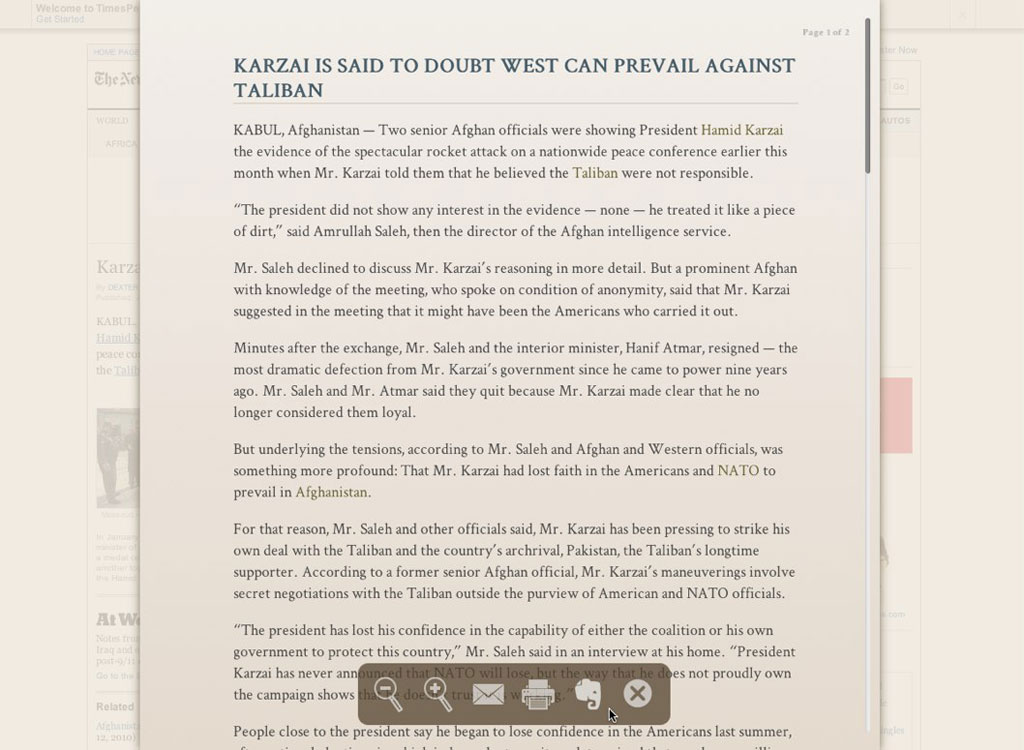
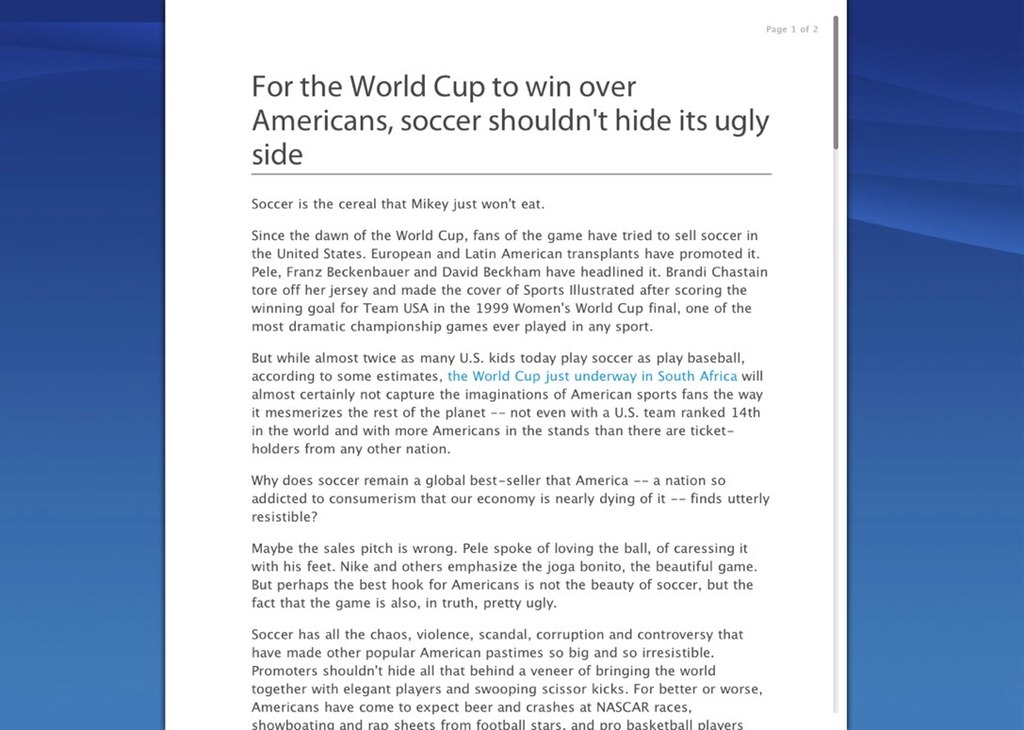
I was thrilled when it was first announced that someone had located the HTML/CSS for the new Safari Reader functionality in Safari 5, which happened the day it was released. I’ve been toying around with some ideas in the days since, and this hack is the result of a little too much effort. Click the screenshot thumbnail to see a full version.
It has a few interesting components…
- Uses CSS3 to find doubleclick.net ads, which Reader sometimes misses because they inject after the DOM loads
- Uses CSS3 to remove blank paragraphs and paragraphs containing nothing but a line break tag
- It only shows the title once, as opposed to at the top of every page
- Many style changes, including:
- uses Google fonts (Crimson Text)
- “antique” color palette, which extends to the background and HUD
- less-contrasty links, easier to read over but still noticeable
- slight gradient in the background
- Extra button in the HUD (Evernote, experimental)
- Narrower scrollbar
- Left-justified text
Currently attempting to resize images to max-width 300px (but it’s not resizing properly if width/height attributes are set. I’ll fix that shortly.)- Update: using a little Javascript now to resize the images proportionally after page load.
- Adds dashed line indicating page breaks, lightens and shrinks page numbers
- Update: added a background image. Let me know what you think.
- Update to update: there’s a second download link without the background image.
If you want to try out the style, download it here (with background image), or grab the version with no background image, and open the archive. Inside you’ll find a file called Reader.html. The file you’re going to replace (back it up somewhere safe first) is /Applications/Safari.app/Contents/Resources/Reader.html. If you don’t know how to do this from Terminal, you can just do it in Finder: go to your Applications folder and locate Safari, then right click on it and choose “Show Package Contents.” That will open a new window with the inner workings of Safari inside it. Open the folder called Contents, and then the Resources folder inside of that. Locate the file Reader.html and drag it out to your desktop (that’s your original, keep it safe). Then drag the new Reader.html file you downloaded into the Resources folder. Restart Safari and try it out!
Some gory details about the process follow…
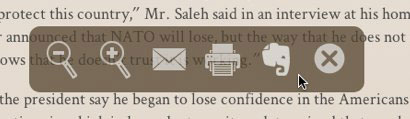
I added a button to the HUD as a proof-of-concept. It doesn’t do anything very useful yet, the current one just loads the title and URL in the Evernote web clipper in a new tab/window. It would be far more useful if I could get the in-page web clipper to work, but when Reader loads, “Reader.html” becomes the current location and title. You can access the original information using the ReaderJS object (ReaderJS.originalURL for example), but Evernote’s web clipper doesn’t let you pass those in, it wants to find them itself. I played around with loading the entire contents of the Reader-rendered page into an iFrame and calling it from there, but I gave up on that after a while. The default print and email functions have success doing something similar; it’s more the Evernote clipper that’s dragging me down. Anyway, you can add Javascript right in the Reader.html file and insert a button to call it. It’s easy.
Update: I figured it out. I had to dupe Evernote’s injected javascript, edit it to use the ReaderJS object that Safari provides for getting the original url and title, then compress and include it in the Reader.html file. It should be fully functional now: pops up the hovering frame and lets you add tags and notes, clips just what Reader is showing using Reader styles (no cleanup necessary in Evernote!) and sends it to your main notebook without opening a new window. If you’re not an Evernote user, you can remove the button just by locating it near the bottom of Reader.html in the body portion. It’s clearly labeled. You’d also want to narrow the HUD back down, so look at the #HUD style and set the width appropriately.
All external images used in the style are base64-encoded and included in the html file, so there are no extra files to mess with. The Google fonts are loaded directly from Google’s website, so reading offline would provide a different look, but who reads web pages in Safari when they’re offline, really? Using Google’s Ajax API’s, you can also easily inject jQuery into the mix, but I haven’t found anything really useful to do with it yet. Actually, I just hacked in Colorbox and improved image resizing with some jQuery… it’s definitely going to be in the next release.
So, that’s the story. I’m sure I’ll have completely revamped this by the end of the weekend, but it’s at a good place right now. Here’s the download link again: Antique Style (and with no background image). Also, I got bored with looking at this style at one point, and decided to make a TUAW style, just for giggles. If you’re curious what the whole web would look like through a TUAW lens (preview), you can try that one out too. As always, have fun.
There is a new version of Antique available! Check out version 1.6!
Addendum: I’ve realized it would be entirely possible to add my own HUD with various style selectors and just switch out stylesheets with Javascript. Expect the next Reader hack I release to be a multi-theme bundle of fun. I’ve had to scratch this plan for lack of cross-domain local storage for preferences. I can’t access the safari.extension API from the Reader.html file, and I can’t store a cookie because once Reader loads there’s no domain to attach to. If anyone has a good idea that doesn’t involve complicated installs, let me know! In the meantime, I’m beginning work on a web tool reminiscent of Arc90’s. It will take your choices of fonts, colors and backgrounds and generate a ready-to-install Reader.html file for you. Not sure how soon I’ll get it done, but be sure to follow me on Twitter and/or subscribe to the RSS feed for updates.