 Yesterday, I posted a quick TextExpander snippet for inserting placeholder images into an HTML layout using placehold.it. I took a minute today to convert this to a TextMate snippet as well, and wanted to share it as I find it immensely useful.
If you’ve never created a TextMate Snippet before, read on. If you’re an old pro, skip down to the code below.
Creating a TextMate Snippet
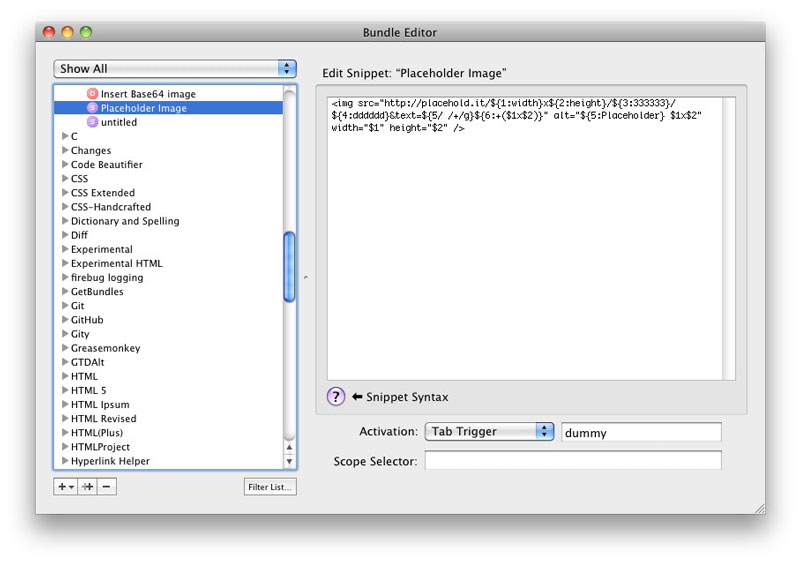
 To create a Snippet in TextMate, go to Bundles->Bundle Editor->Show Bundle Editor. If you don’t already have a “personal” Bundle, you should create one to keep your custom Snippets and Commands separate from other bundles. Just use the plus sign button in the bottom left and choose New Bundle, then name it with your own name (or whatever you like).
Select that bundle in the left column and use the plus sign button at the bottom again, this time choosing New Snippet. Name the new Snippet “Placeholder Image” and set the Activation to Tab Trigger and enter your preferred shortcut in the field next to it. I’m using “dummy,” which is the same as my TextExpander snippet, but I have TextExpander disabled in TextMate, so it overlaps nicely.
Next, insert the following code in the main text area for the snippet…
The Placeholder Image Snippet
<img src="http://placehold.it/${1:width}x${2:height}/${3:333333}/${4:dddddd}&text=${5/ /+/g}${6:+($1x$2)}" alt="${5:Placeholder} $1x$2" width="$1" height="$2" />
Using the Placeholder Image Snippet
Snippets in TextMate don’t save until you select another one or close the Bundle Editor, so change your sidebar selection before you try it out. You should be able to create or edit any HTML or PHP file now, and type your shortcut, followed by a tab, and get a placeholder image. After it’s inserted, you can tab through and change the attributes.
This Snippet gives you a full image tag with tab stops for width, height, background color, foreground color and title text. The title text is entered in the alt attribute, and mirrored into the query string so that you can just type alphanumeric characters with natural spaces and it will substitute the necessary plus signs in the mirrored version. The width and height are included as mirrors in the title, but you can delete that in the final tab stop.