There is a new version of Antique available! Check out version 1.6!
 jQuery: added the jQuery library via Google’s Ajax API to make some of the other additions much easier to implement.
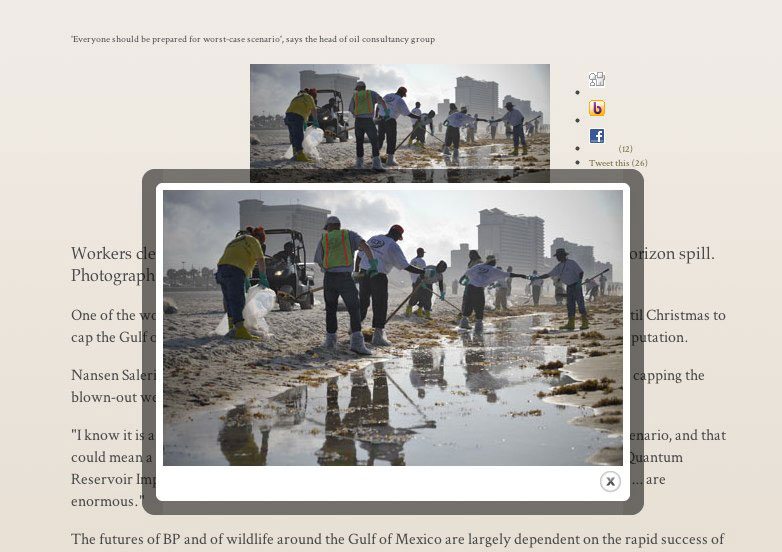
- Colorbox: links to images are automatically opened in a “lightbox” so you don’t have to leave the page. Uses jQuery Colorbox and automatically applies the effect to links ending in ‘.jpg’ or ‘.png’.
- Widon’t: headlines and paragraphs have a widon’t function applied to them, preventing “widows” (short words alone on a line). This was mostly annoying me in the top-level headings of the page, but it’s a nice touch throughout. It ignores words longer than 8 characters. They’ll do just fine on their own.
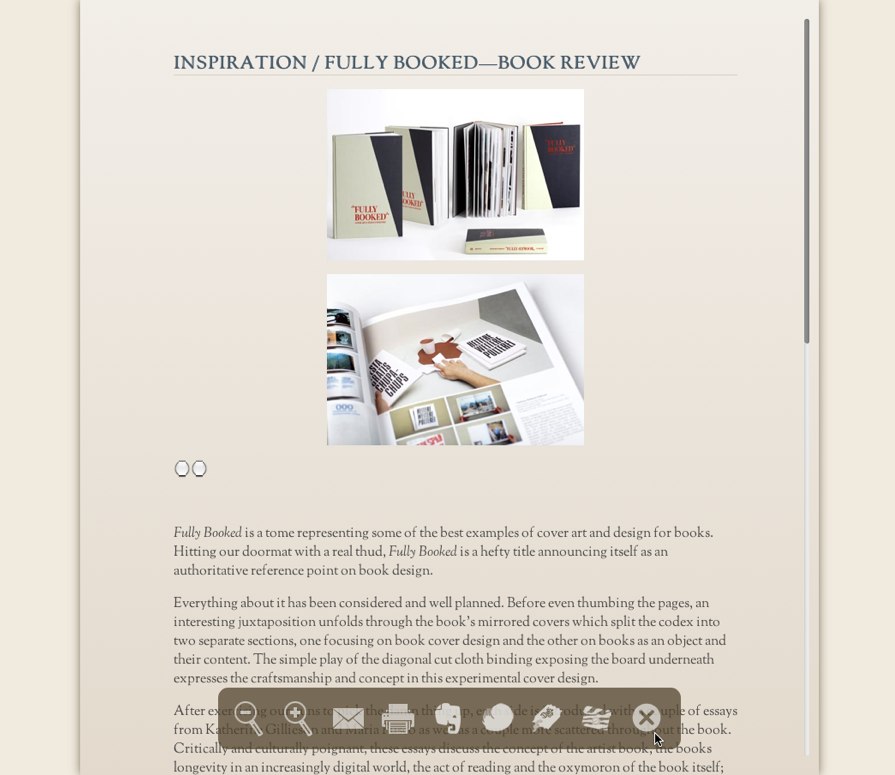
- New HUD buttons: in addition to the Evernote web clipper button in the floating HUD, there are new buttons for DEVONthink, Delibar and Webbla. These are mostly to show how to pull it off, and are easily edited. See the instructions below to remove buttons from the HUD.
- Pass text selections: unlike using bookmarklets, clicking on a HUD icon makes you lose your text selection. Any service that accepts a selection as a note or description (Evernote, DEVONthink, Webbla, etc.) won’t normally work. By storing the selected text in an HTML5 sessionStorage key every time your mouse enters the HUD, Antique is able to pass what was selected before you clicked the button. Still working on making this function with Evernote.
 Smarter image resizing: when you load a page, Antique shrinks the larger images. It’s smarter now, though: wide, centered images are only reduced slightly and left centered, and any floated images that are reduced (and aren’t already linked somewhere) are now linked to the full size version of themselves, which will display in-page using Colorbox. Floated images also have bottom margin and clear:left applied to them to prevent horizontal stacking when images are close to each other in the layout.
- Minor Update: (version 1.5.1) I just swapped out Crimson Text for OFL Sorts Mill Goudy TT, primarily because I like the quotation marks much better. I also added hanging quotes (image-based) to blockquotes, and improved code blocks and bulleted lists wrapped around images.
Installation
If you want to try out the style, download it here and open the archive. Inside you’ll find a file called Reader.html. The file you’re going to replace (back it up somewhere safe first) is /Applications/Safari.app/Contents/Resources/Reader.html. If you don’t know how to do this from Terminal, you can just do it in Finder: go to your Applications folder and locate Safari, then right click on it and choose “Show Package Contents.” That will open a new window with the inner workings of Safari inside it. Open the folder called Contents, and then the Resources folder inside of that. Locate the file Reader.html and drag it out to your desktop (that’s your original, keep it safe). Then drag the new Reader.html file you downloaded into the Resources folder. Restart Safari and try it out!
There are lots of minor efficiency and style tweaks, but those are the major changes. If you’re interested in modifying the HUD (removing unnecessary buttons), read on…
This part is a cinch, even if you don’t know anything about Javscript or HTML. The HUD buttons are in the HTML body section of the Reader.html file, and you can just edit them out in a text editor. If you open the file (Reader.html) in a your editor of choice (as plain text, not rich text), and scroll all the way to the bottom, you’ll see a series of “<button id="hud... >” lines. It will be pretty obvious what each one is for, and you can simply comment out or delete the lines for buttons you don’t need. Antique will automatically resize and reposition the HUD based on the number of buttons in it, so that’s all you have to worry about.
Adding buttons is a different story, depending on what you want the button to do. So far, I’ve mostly been converting existing bookmarklets. You can set the function to call right in the button definition (just copy an existing button and edit it), then add the appropriate function to the script section above. Note that any bookmarklet that uses window.location, location.href or any means of getting the page title attribute are going to break. Reader overrides all of that, but thankfully, it stores the info in an object called ReaderJS. You can access the original page url with ReaderJS.originalURL and the title with ReaderJS.displayTitle. Those two make it pretty easy to cover 90% of bookmarklets you’d want to use.
I’m including most external javascript plugins and libraries directly in the html page. Standard rules don’t apply, this is all being served locally and the fewer files you have to keep track of, the easier it is to distribute. If your needs are different, you can reference external files in the Safari.app/Contents/Resources folder with safari-resource:/filename.ext, where filename.ext is the name of the file.
Antique handles the resizing of the HUD automatically, but if you’re doing it from scratch you’ll need to adjust the width and left-margin of #hud in the css section. The buttons are 48x48px PNG files, with the icon occupying approximately 36x36px of that space. White and transparent pixels only, if you want to fit the aesthetic, and the “inactive” version should be saved at about 70% opacity. I’ve been encoding all of my PNG files in base64 and including them inline in the CSS to make it easier to distribute, but you can reference them as mentioned above.
You also can’t use document.location when Reader.html is loaded, so most bookmarklets need to be modified. You can use window.open and immediately close the new window, like this:
function sendToWebbla() {
	var wlWindow = window.open('webbla:url='+encodeURIComponent(ReaderJS.originalURL)+'&mode=modify&title='+encodeURIComponent(ReaderJS.displayTitle))+'&textSelection='+encodeURIComponent(sessionStorage.getItem('textSelection'));
	wlWindow.close();
	self.focus();
}
I have the self.focus() in there because I have Saft running and restoring focus to the last active tab, which somehow is missing and leaving me on the wrong tab when I execute the above sequence. So this just brings me back to the right tab. When it runs, you can just barely see that it’s even opening a new window/tab. Should be pretty seamless for most folks.
I think that covers the process in a general sense. Each button I’ve added has had its own quirks and issues, so it would take a lot longer to detail every possible problem you’d run in to.