A good friend of mine, Christina Warren, just published a piece on Mashable / Dev & Design about TextMate themes, and it warms my heart to know there are other people as dedicated to this aging text editor as I am. She also made her collection available on GitHub, so check that out if you’re in the market for a new look.
Despite the lack of any major TextMate update for years now, it’s still my absolute favorite editor. I’ve tried to let go of it. I played with Coda when it came out, and even tried to port some of my favorite TextMate bundles (without much success), but in the end it turned out that I really like having multiple windows taking advantage of my multi-monitor setup. At least when it comes to Terminal (which, thanks to Visor, is never further away than a double-tap on my control key), FTP programs and my editor. So that was a wash.
Espresso came out a while after, and it was (and is) hands-down the sexiest text editor out there. I still use it whenever I can, but I just haven’t found it to be as extensible and comfortable for me as TextMate. I can make TextMate do anything. Seriously, it made the coffee I’m drinking.
And now, I’d like to pay tribute to one of the original TextMate themes which, in my opinion, is still the greatest theme ever. I’m not alone in this, people espouse its virtues throughout the search engines, it’s been ported to Espresso, Coda, even Notepad++ on Windows, and you can often find online code rendered in its pleasing pallete. I like light on dark themes in general, and I do, on occasion, like to switch to something high-contrast like Succulent or Vibrant Ink. I even like dark brown backgrounds with mellow foregrounds, sometimes. But I always end up back at Twilight, with its slate background and perfectly contrasted colors. It’s detailed and effective in just about every possible syntax, and I find it perfect for readability. I just wish they hadn’t gone and named a tale of girly vampires after it.
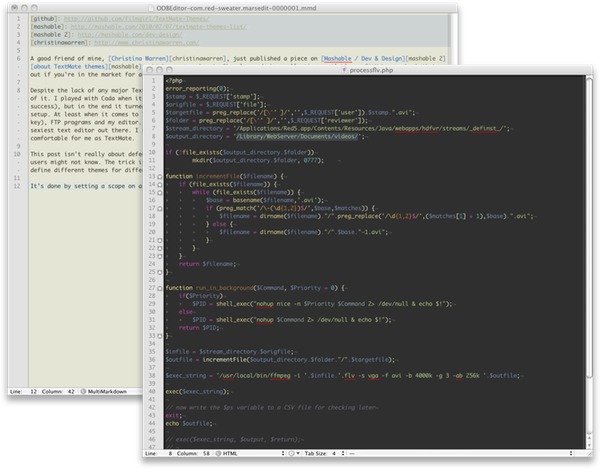
I will offer a bit of a tip to try to bring this post around to being… interesting? Did you know that you can actually pull off multiple themes in one? If you look at the screenshot in this post, you’ll see two different color schemes, one for my MultiMarkdown files, and one for my PHP code. It’s a customization of the Twilight theme, with custom colors added for Markdown-specific scopes. In the Preferences, under Fonts & Colors, you’ll note that every color definition has a related scope. You can add new scopes and define colors by pressing the plus button on the left.
You can use a simple TextMate command to find the scope for a particular item. Create a new command in the Bundle Editor, set it to Save Nothing, Input: None, Output: Show as Tool Tip. In the Command field, enter:
echo "$TM_SCOPE" | pbcopy
echo "$TM_SCOPE copied"
Then assign a key equivalent to it and you can just stick your cursor inside whatever you want to know the scope of, and press your key combination. The scope is in your clipboard now, and you can do what you want with it (like add new color definitions). Enjoy!